Your first mosaic product
Start with one product, a small selection of sizes, and your factory’s confirmed palette. Follow each check before accepting customer orders.
Prelaunch guide. Public installation is not available yet. These instructions apply after MosaicMint is installed. Screenshots show real development-store screens with test data; they are not production recommendations.
Before you start
- Use a theme that supports Online Store 2.0 product app blocks. Installation does not automatically add a block to your product page.
- Prepare a dedicated customizable Shopify product, baseplate dimensions, available frames, prices and factory color references.
- Use an image you own for testing. Do not upload customer photographs just to try the app.
- Test in a development store or unpublished theme first. Never enable payment test mode on an active selling store without planning the impact.
1. Choose your product and sizes
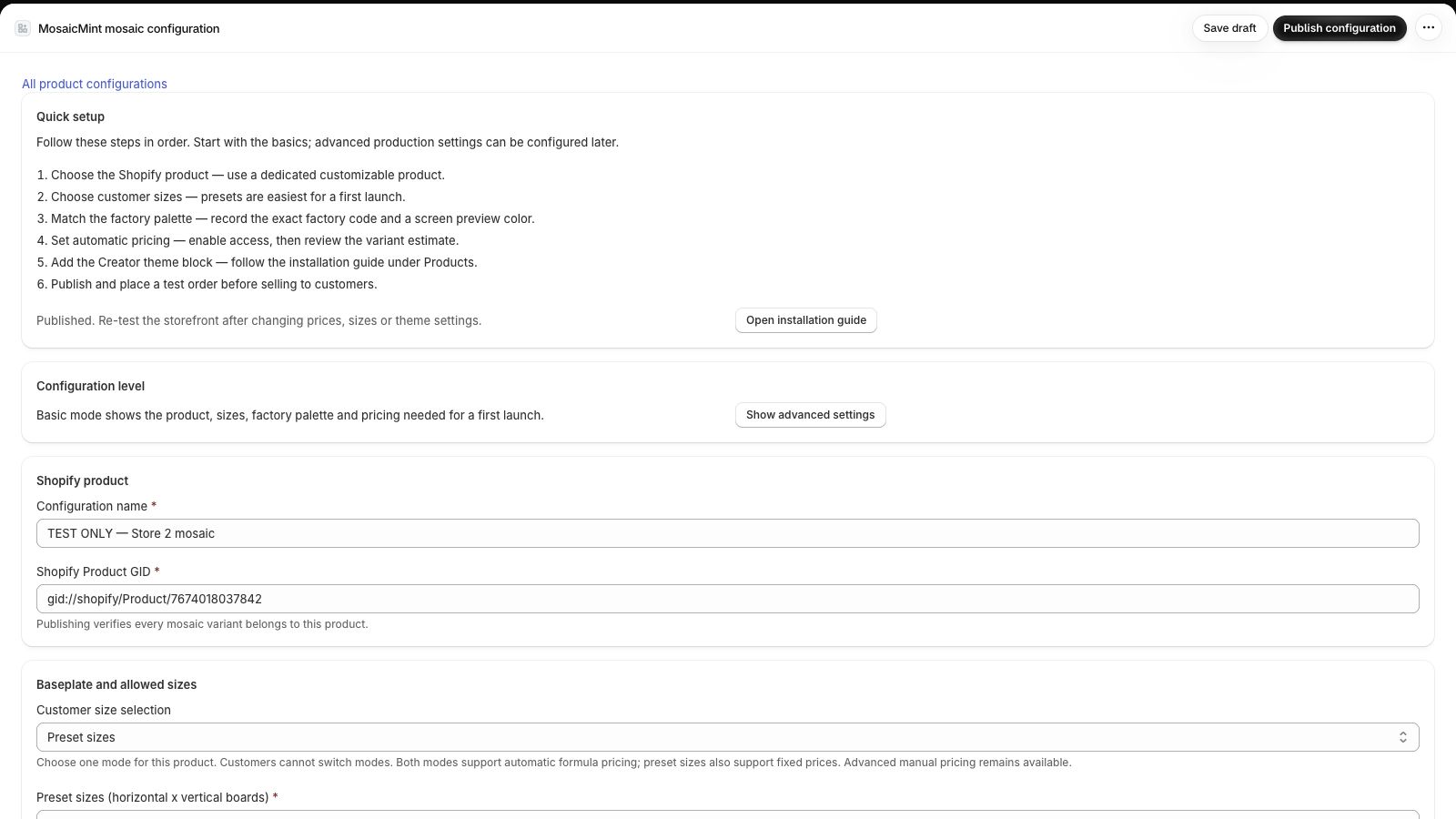
Open Shopify admin → Apps → MosaicMint → Products. Open a configuration and stay in Basic mode for your first setup. Give it a recognizable name.
The Shopify Product GID identifies your product. Open that product in Shopify admin, copy the numeric ID after /products/ in its URL, and add gid://shopify/Product/ before it. Do not copy a variant ID or use the example ID from a screenshot.
Enter the baseplate’s stud dimensions and physical dimensions from your supplier. Choose Preset sizes and start with a few layouts. A layout such as 3x2 means three boards across and two down, not centimeters.
Check: the product ID is yours, dimensions match your actual baseplate, and every offered layout can be manufactured.
2. Match your factory’s colors
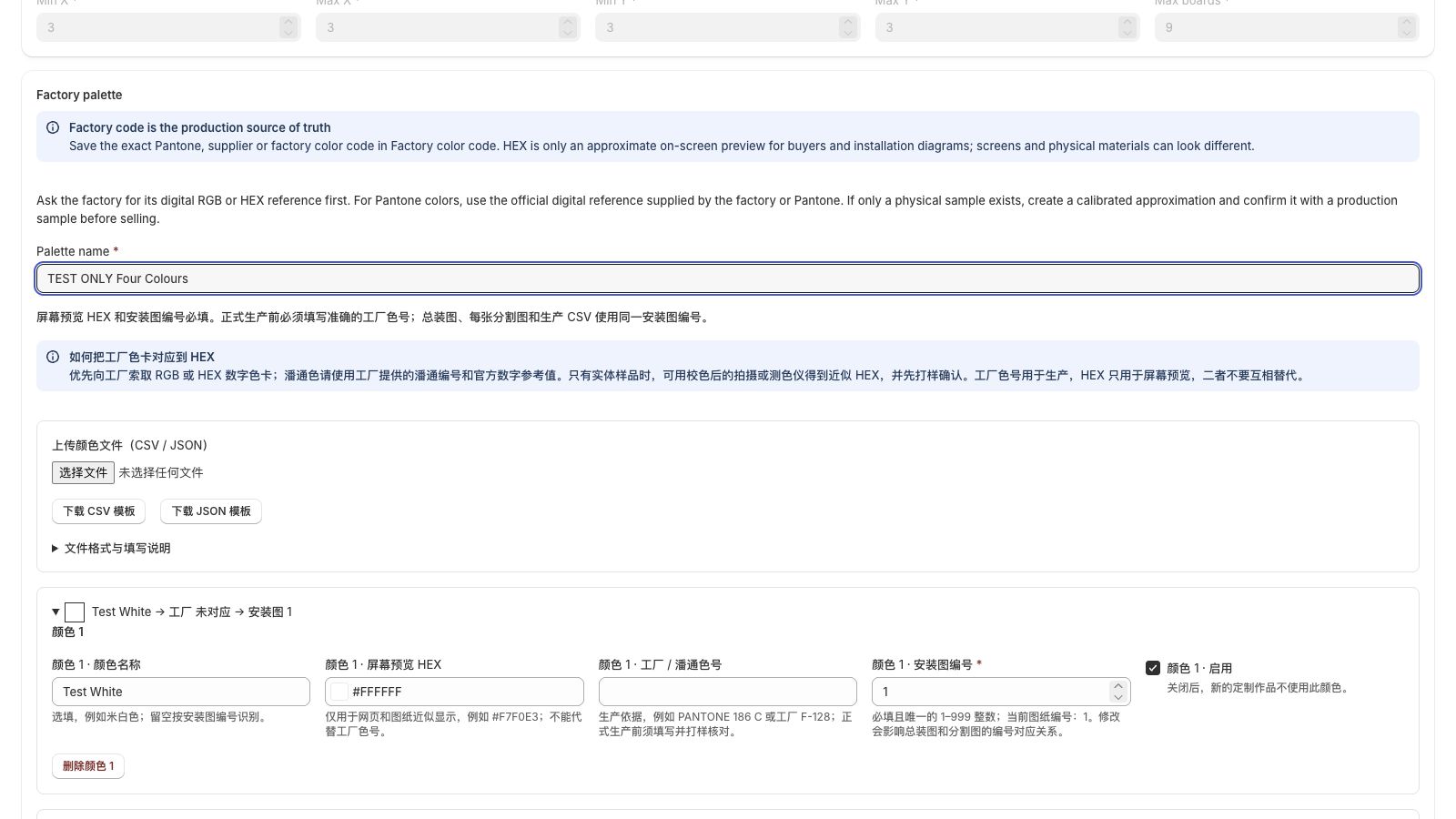
Each product configuration can use its own palette. Do not assume that different factories use the same colors or numbering.
- Factory color code: the supplier’s exact production reference, including the complete Pantone reference when applicable.
- HEX: a six-digit screen preview such as
#FFFFFF. Ask the factory for its digital HEX or RGB reference. A photograph or generic online conversion is not a reliable production match. - Installation number: a unique integer from 1 to 999, shared by assembly diagrams and production CSV files.
If the factory only has physical samples, obtain a measured or calibrated approximation and approve a physical production sample. Keep the exact factory code even when the screen preview looks different.
Download a four-color test palette (JSON). Every code in this file is fictional. Replace all values with factory-confirmed data before production. Importing replaces the palette in the form after you confirm the preview; save and publish only when you intend to use it.
The editor also provides CSV and JSON templates. Use UTF-8 CSV, not an Excel workbook. The current CSV format has four columns: Color name, HEX, Factory color code, Assembly label number. Fields cannot contain commas, quotes or line breaks. Files are limited to 1 MB and 500 colors.
Check: every enabled color has an accurate factory reference, a valid HEX and a unique installation number. Compare a sample diagram and material list with your supplier before selling.
3. Review prices before publishing
In Pricing, choose the mode that fits your product. Automatic pricing requires the requested product access and successful provisioning. Review the estimated variants before enabling it. Stop if the app reports missing access or setup failure.
Different priced combinations can require different Shopify variants; automatic pricing does not mean zero variants. Start with a limited size and frame selection. In manual mode, every offered size must map to the intended Shopify variant and price.
Select Save draft while preparing, then Publish configuration when ready.
Check: each size and frame shows the intended price, and the same amount reaches the cart. Do not accept orders when prices disagree.
4. Add the customizer to your theme
- Open Online Store → Themes → Customize for the theme you are testing.
- Select the product template assigned to your customizable product.
- Choose Add block → Apps → MosaicMint customizer. Position it where shoppers can find it, then Save.
- Open App embeds, enable MosaicMint cart thumbnails, then Save again.
- Preview the actual configured product, not a different product sharing the template.
Check: the customizer opens on the intended product on both desktop and phone. Cart thumbnails must be checked in your actual theme; custom carts can need extra integration. The embed does not replace Shopify’s native checkout product image.
Shopify’s explanation of app blocks and app embeds.
5. Run a complete test order
- Upload a test image, crop it, change a size and frame, then save the design and add it to the cart.
- Confirm the cover matches the saved design, dimensions and price. Test two different designs in one cart and a quantity greater than one.
- Complete checkout using your store’s appropriate test-payment setup. Do not enter a real card for this check.
- Open MosaicMint → Designs and Production. Confirm the ordered design appears and belongs to the correct order.
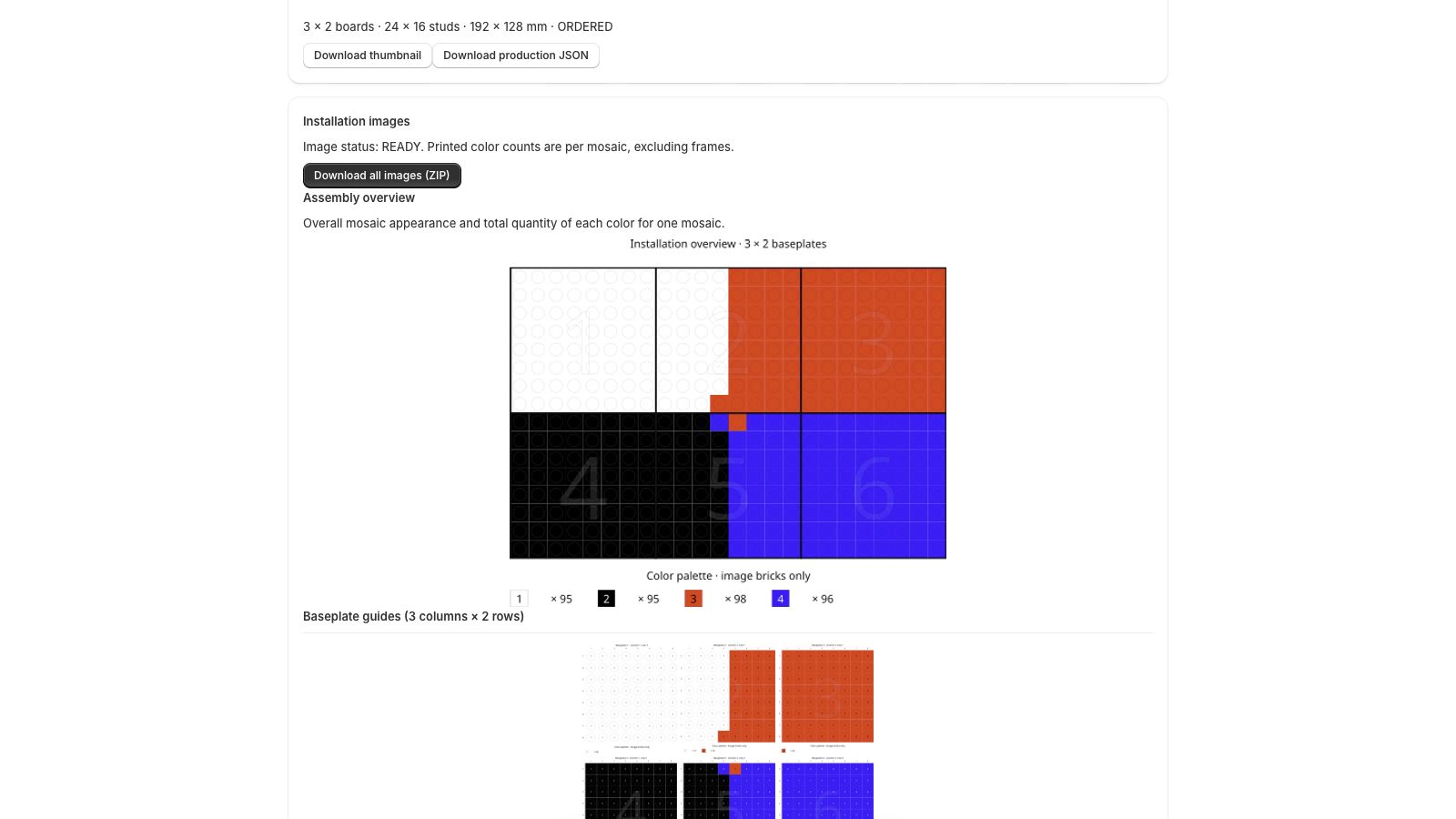
- Download the production files. Open the assembly overview, individual board images and material CSV; verify layout, color numbers, counts and frame parts.
- On the Shopify order details page, add and pin the MosaicMint block if you want the design cover visible there.
Ready for your first customer only when: desktop and mobile both complete the flow, prices agree, different designs remain separate, production files open correctly, and the factory approves a sample. Repeat relevant checks after changing a palette, pricing, sizes or theme.
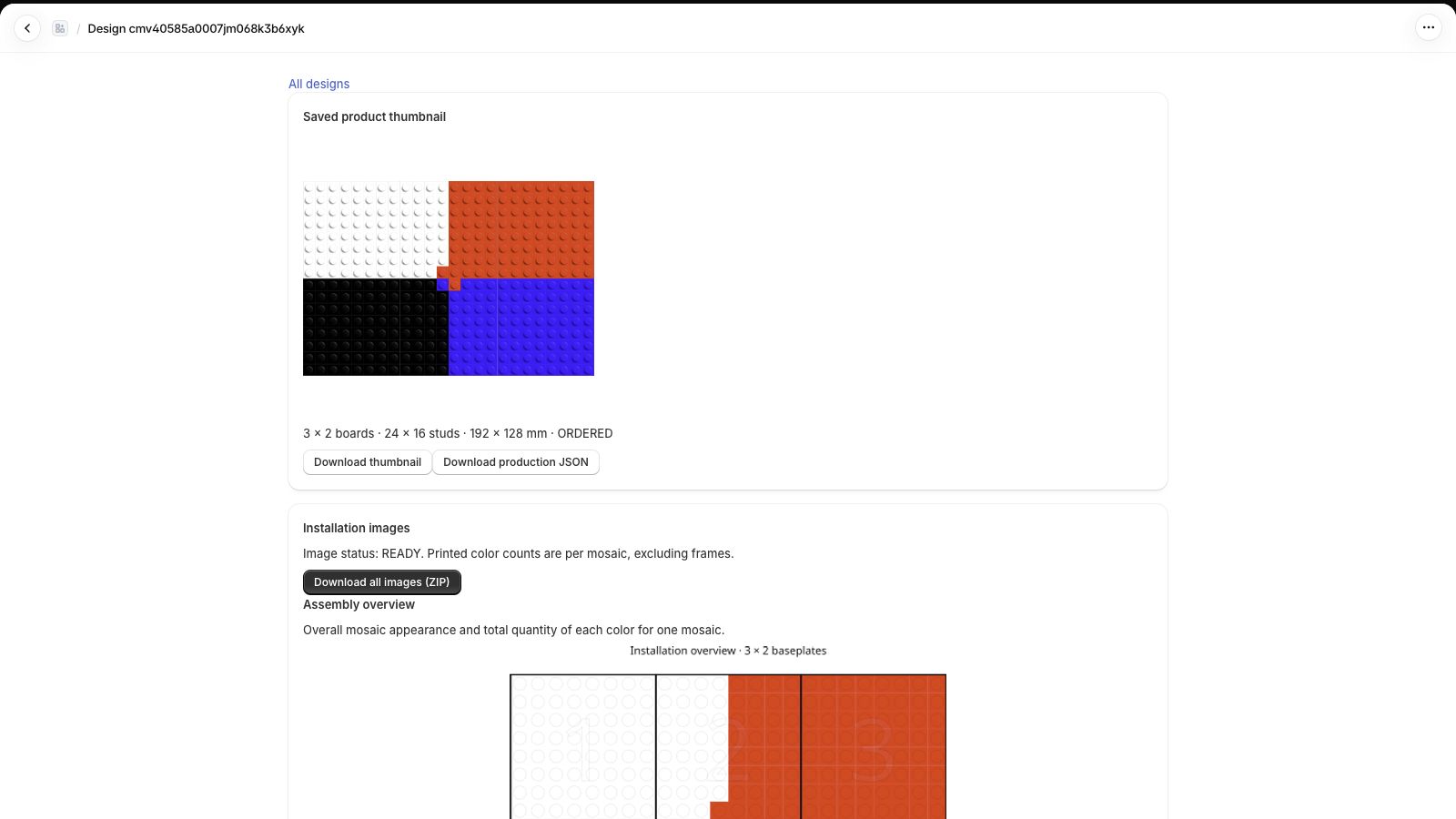
If installation images show NOT_GENERATED, select Generate installation images for the ordered design and wait for READY before downloading.
If something does not work
The customizer is missing
Check that the configuration is published, the Product GID matches, and the saved app block is on the template assigned to that product. An older theme without product app-block support needs a compatible theme.
The cart still shows the original product image
Enable and save MosaicMint cart thumbnails in App embeds. Check the full cart and cart drawer separately. Custom themes may need integration; send support the theme name and reproduction steps, not account credentials.
Colors do not match the sample
Check the exact factory code and material first. HEX only approximates the screen appearance. Confirm your physical sample with the factory instead of replacing the production code with a guessed color.
Automatic pricing or subscription is unavailable
Follow the specific access or setup message in the app. Do not repeatedly approve charges or change existing merchant variants to bypass an error. Public subscriptions are still being prepared.
I need help or want to suggest a feature
Use the support email below. Include your theme, affected step and a screenshot without customer or payment details. For feature ideas, describe what you were trying to achieve. Never send passwords or access tokens.
Operator and contact
LI LONGLONG, Beijing, China.
Email: mosaicmint.support@gmail.com